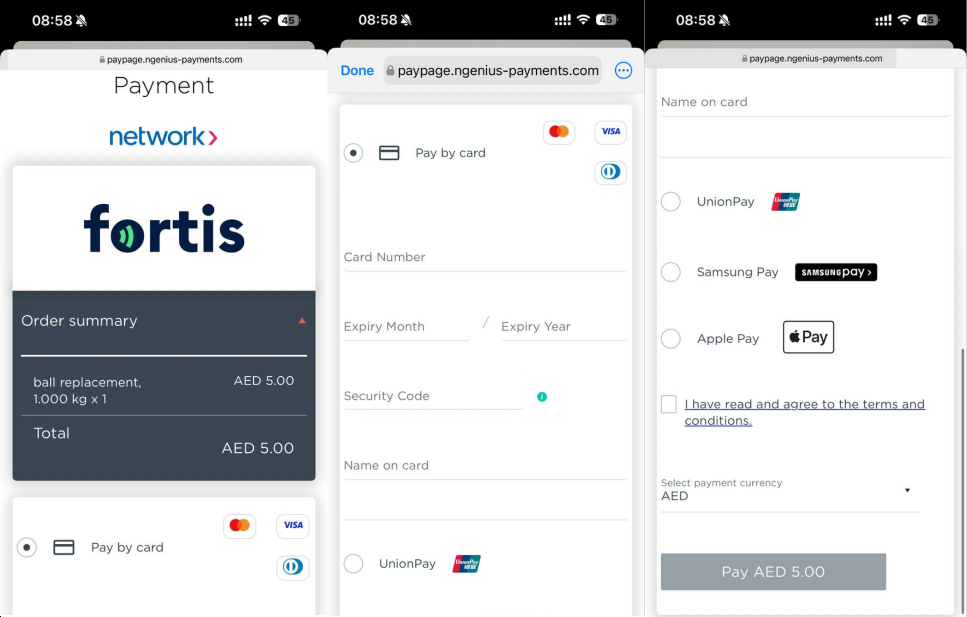
With the Fortis POS Platform, you can create payment links and share them with customers to accept online payments.
Online payment links are provided through Network International. To begin, contact your Fortis Customer Success executive to start the setup process. You will be asked to provide company details, sign the required documents, and pay a setup fee. Once completed, Network International will send you an email with access details for your account.
Steps
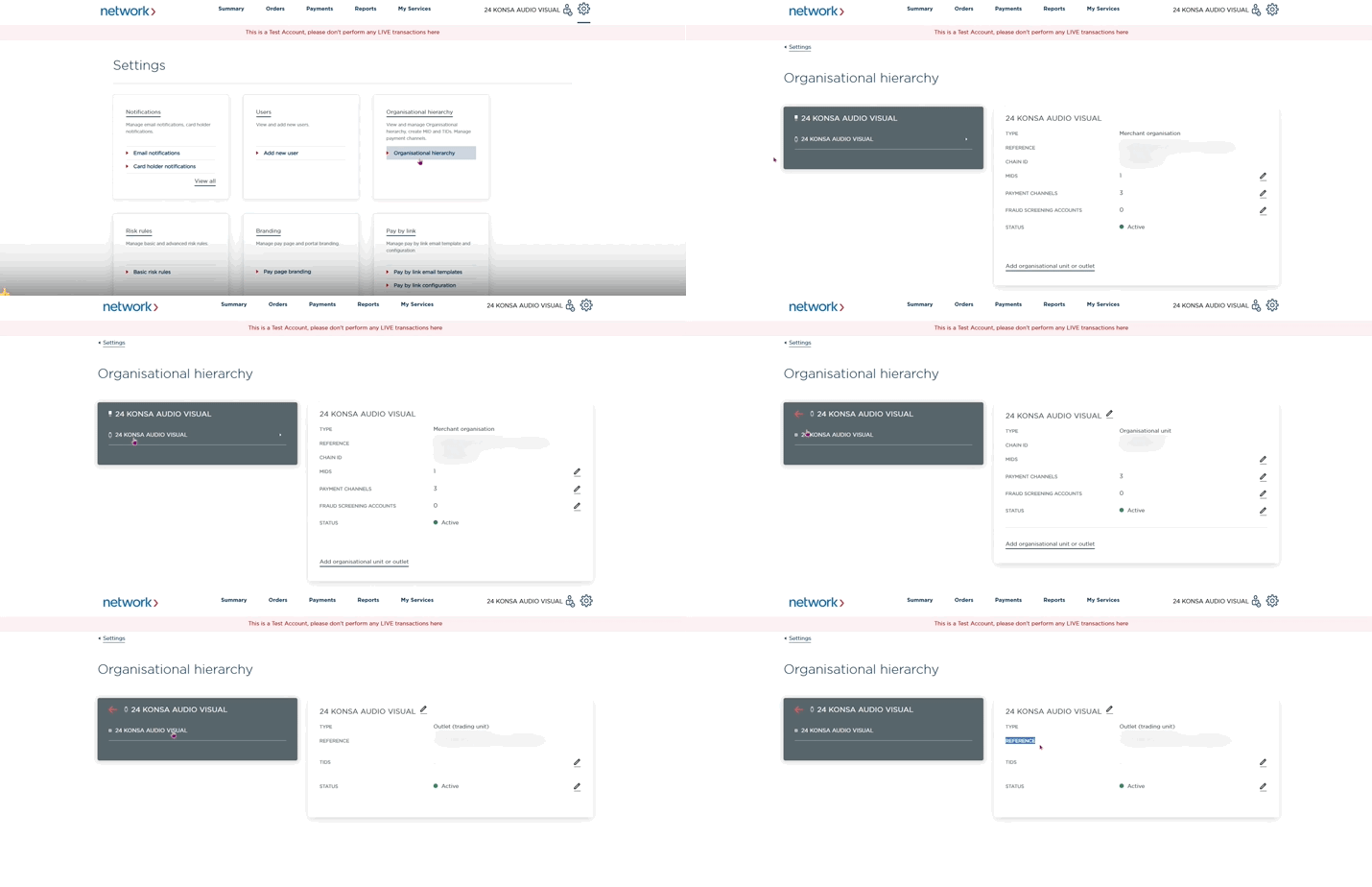
Open the email from Network International and use the provided link to sign in to the Network International Back Office.
Go to Settings → Organizational Structure.
In the left menu, click your company name. The icon next to it will change.
Click your company name again.
Copy the value from the Reference field and save it for later use.
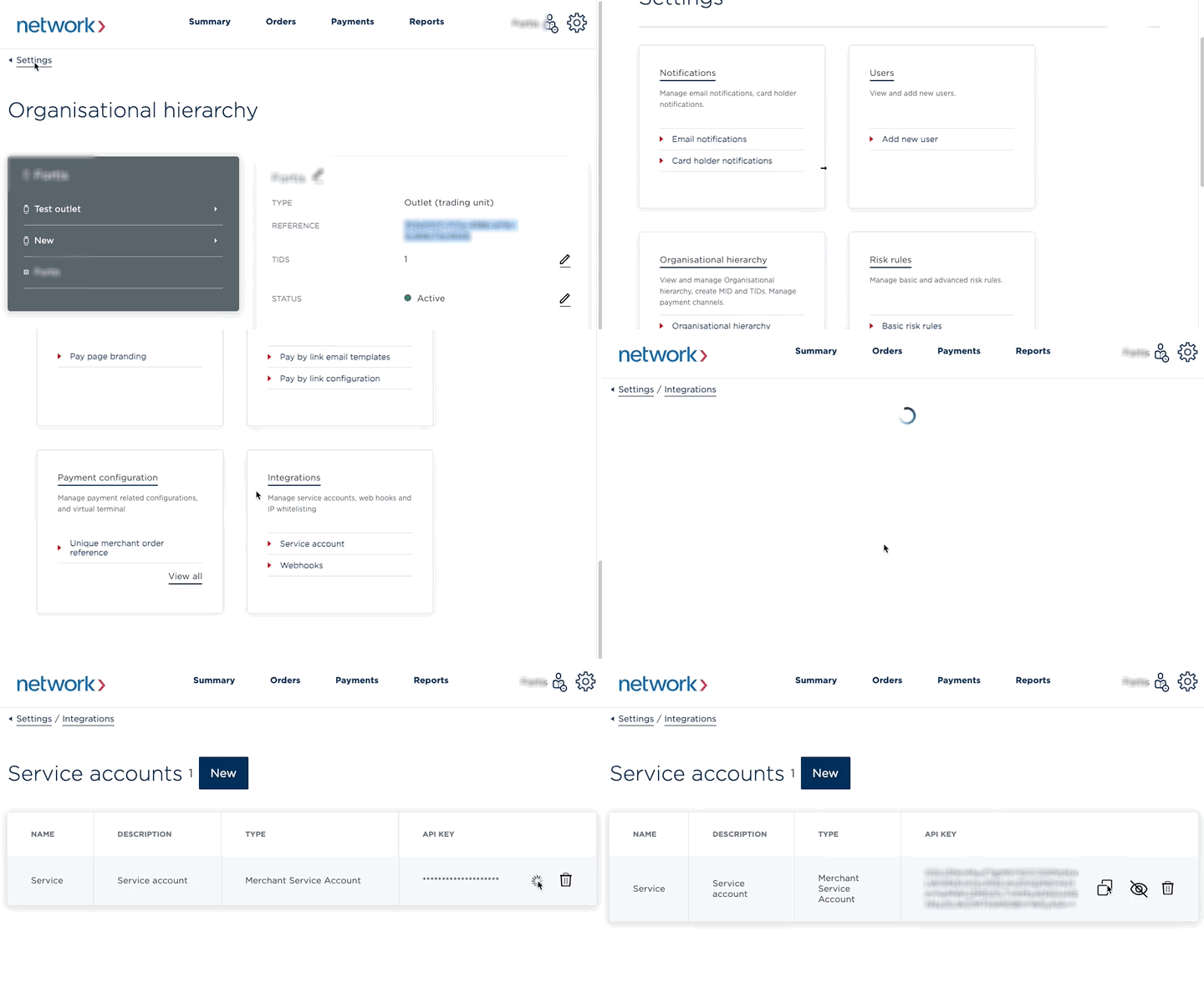
- In your Network International Back Office, go to Settings → Integrations → Service Account.
- In the list of your service accounts, copy your API Key, and save it somewhere on your computer.
- Sign in to your Fortis POS Platform at https://my.fortis.world/auth/login
- Go to Settings → Orders → Payment Links.
- Click Edit.
- Select your Link Lifespan.
- Paste your Reference value to the Company ID field.
- Paste your API Key value to the API Key field.
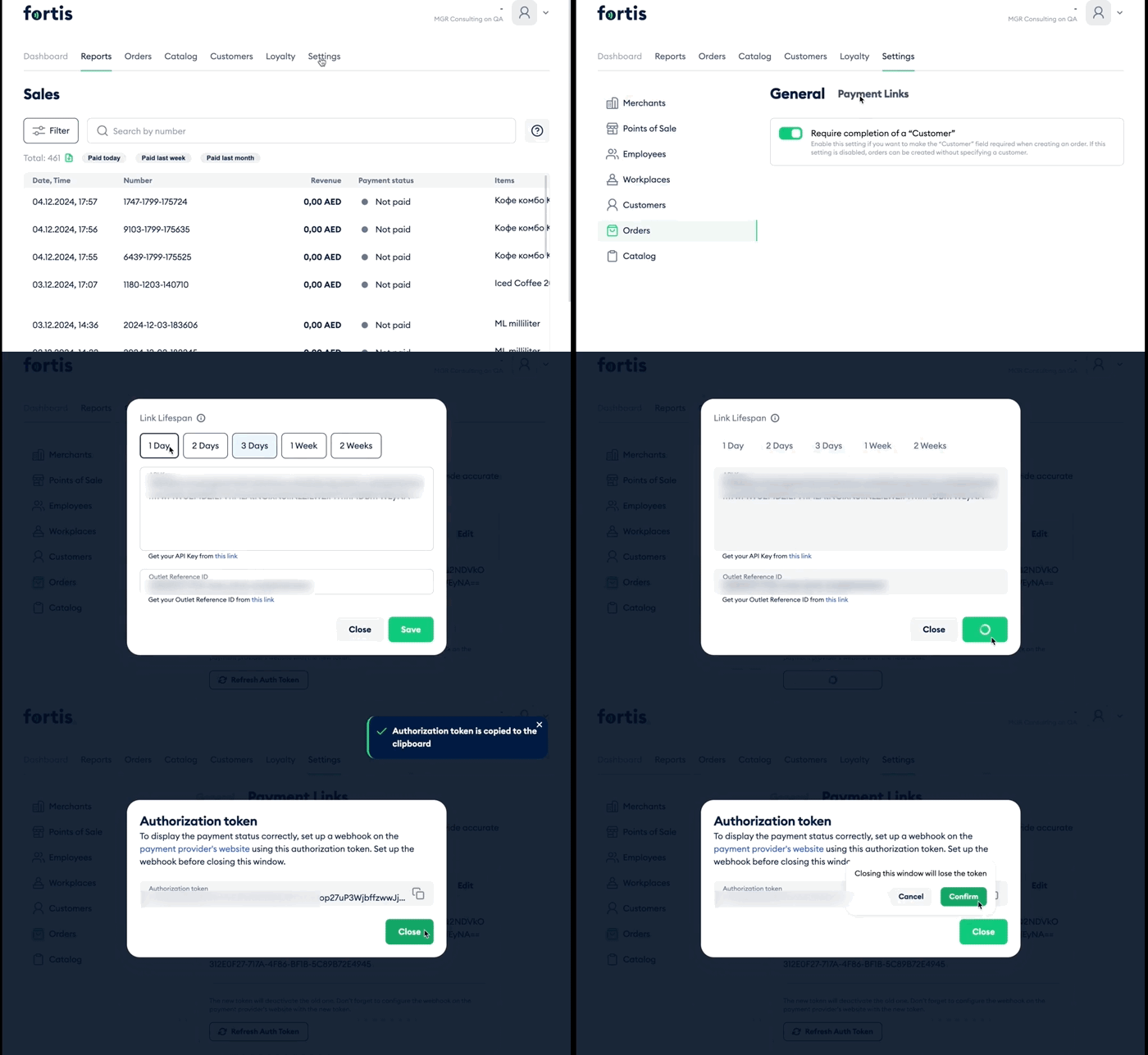
- In order to receive notifications on payment status, copy the Authorization token.
- Return to Network International website. Go to Settings → Integrations → Web-hooks.
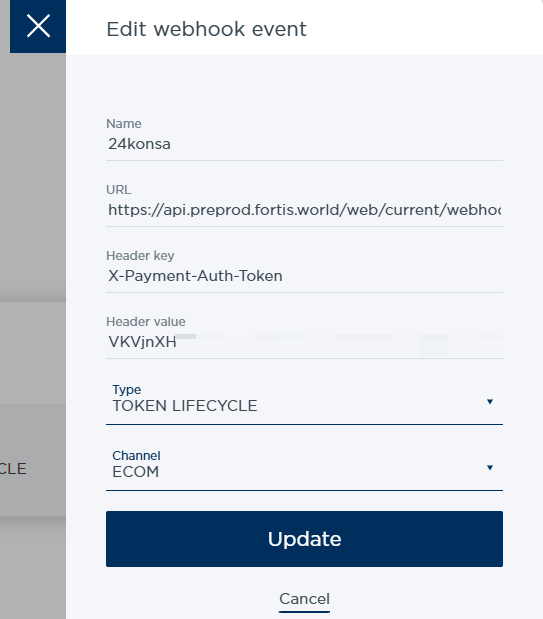
- If you don't have any web-hook headers set up, hit New. In the other case, find X-Payment-Auth-Token line in the Web-hooks table, and hit Edit.
- Fill in the form. Paste
https://my.fortis.world/web/current/webhooks/network-internationalto the URL field,X-Payment-Auth-Tokento the Header key field, and your Authorization token to the Header value field. - Hit Add/Update.
- In the Webhooks table, find X-Payment-Auth-Token line, and hit Play button in the end of the line.
|
💡 Tip
If you need to generate a new Authorization token, just hit the Refresh Auth Token button in Settings → Orders → Payment Links section of your Fortis POS Platform and paste the new token at Network International website as described above. |
By following your payment link, your customers will be redirected to the Network International payment form. There they can pay for your orders either by card, or using other payment methods, such as UnionPay, SamsungPay, or ApplePay.