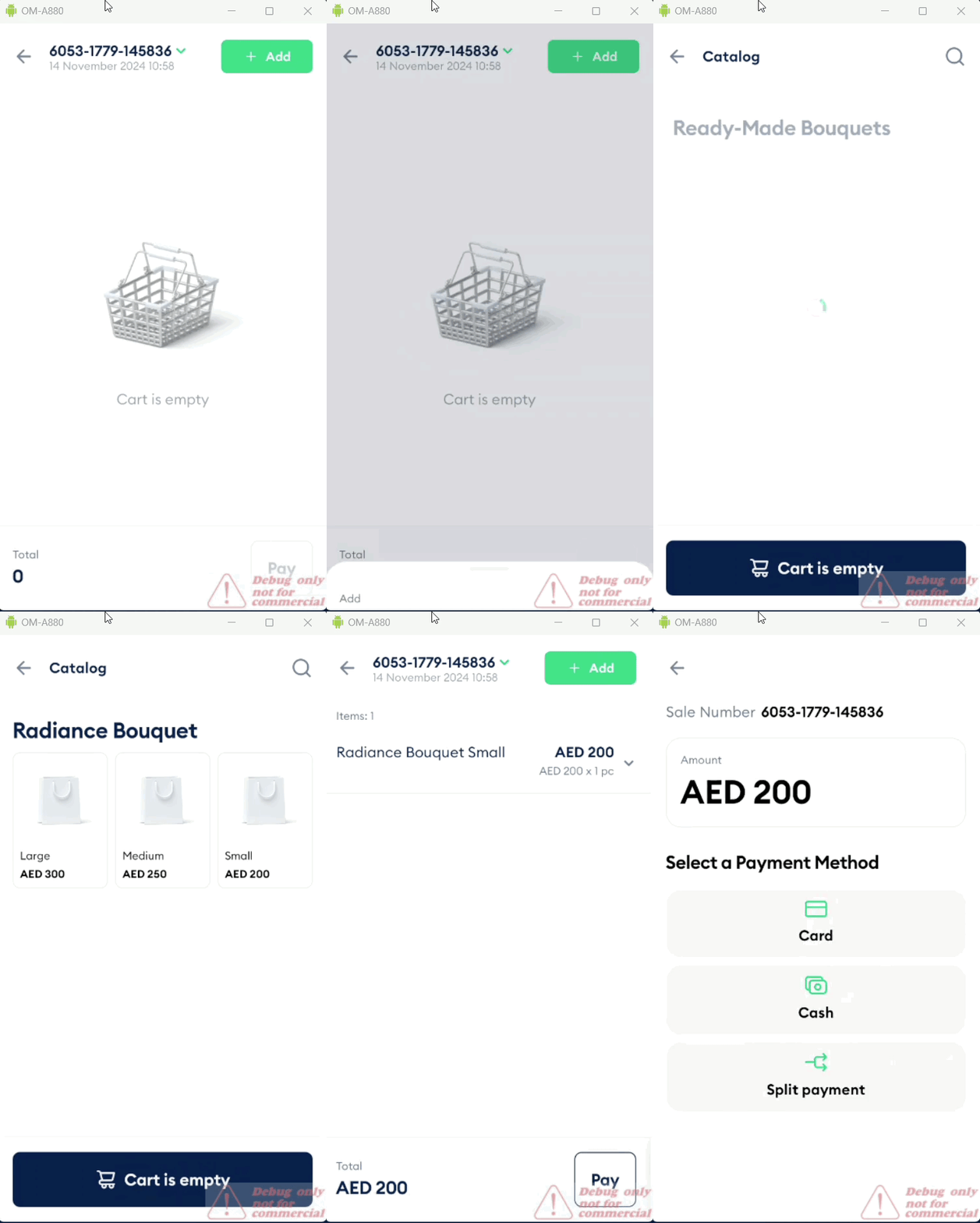
In the New Sale screen, tap Add → Catalog items to view all parent categories.
Browse items by selecting a parent category, then tap a subcategory to view available item variations.
Tap an item variation to add it to the cart. Tapping the same item multiple times will add additional quantities.
Continue adding items as needed, or tap To cart to proceed to the next step.
Scanner
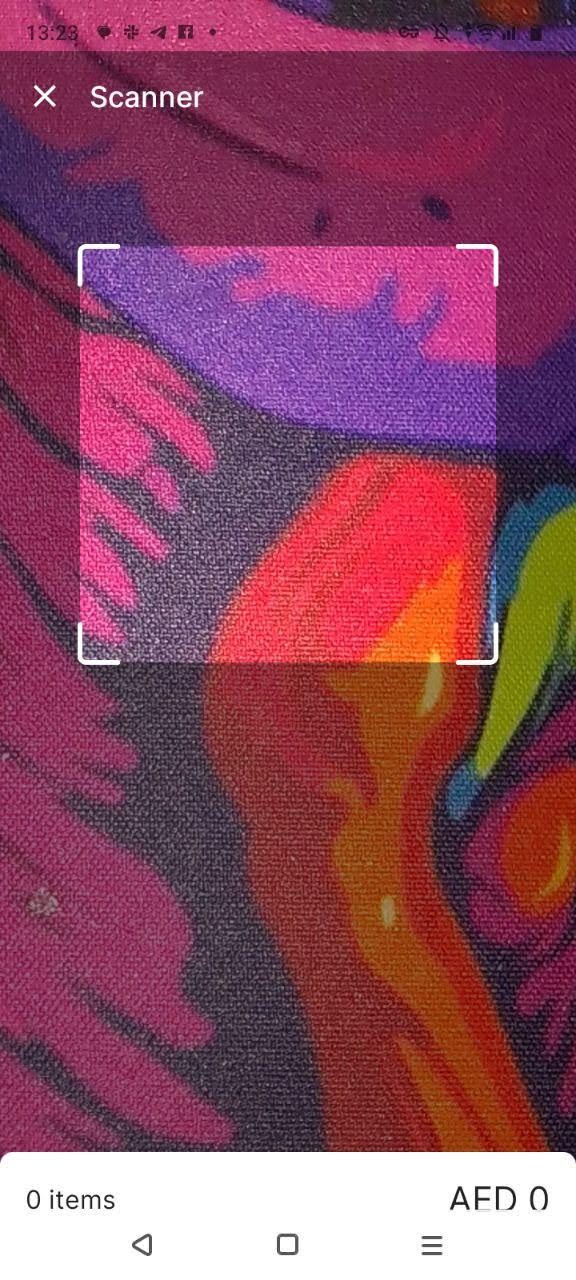
In the New Sale screen, select Scanner.
Scan the item’s barcode or QR code. The item is added to the cart automatically.
Repeat the scan to add more items.
When finished, proceed to payment, accept the payment, and print the receipt.
Non-Catalog Item
Go to Sales, tap New Sale, then tap Add in the top-right corner.
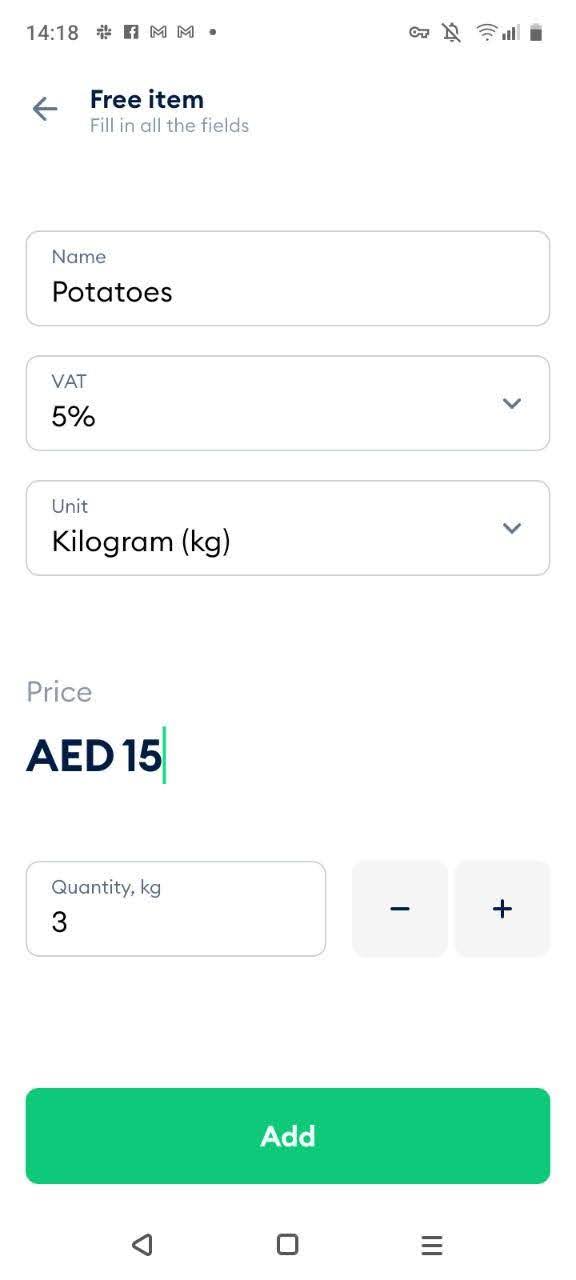
Select Non-catalog item to open the item creation window.
Enter the product name.
Select the VAT option (5%, 0%, or exempt) and choose a unit.
Enter the price, set the quantity, and tap Add to add the item to the cart.