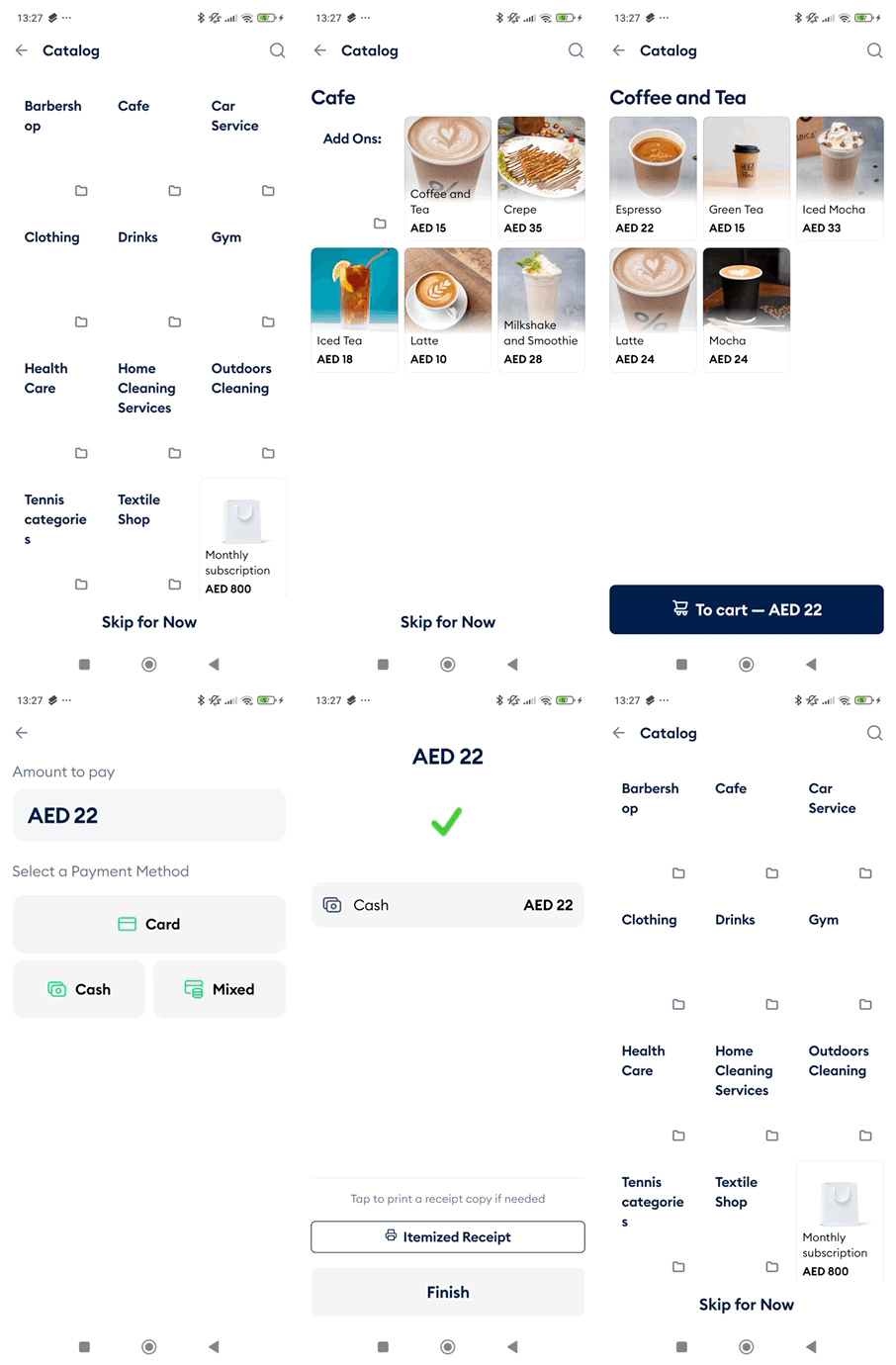
This section explains how to create sales and accept payments using the Fortis POS App.
The Fortis POS App offers two ways to process sales:
Manual Sale is a quick option where you enter the amount, tap Pay, and complete the transaction.
Catalog Sale provides a structured sales flow. You can add items from your catalog, scan barcodes, or create items during the sale. This method improves reporting accuracy and gives clearer visibility into sales performance.
The Fortis Lite App supports Manual Sale only, offering a simplified option for basic sales processing.
Manual Sale
To make a Manual Sale:
- Log in to the Fortis POS App.
- On the main screen, hit Manual Sale.
- Enter the Amount to pay and hit Pay
- Select a payment method: Card, Cash, or Mixed.
- After the payment is accepted, the POS device will print a receipt. Tap Finish.
Catalog Sale
Steps to Make a Catalog Sale
Log in to the Fortis POS App.
From the main screen, tap Catalog Sale.
Add items to the cart and tap To cart.
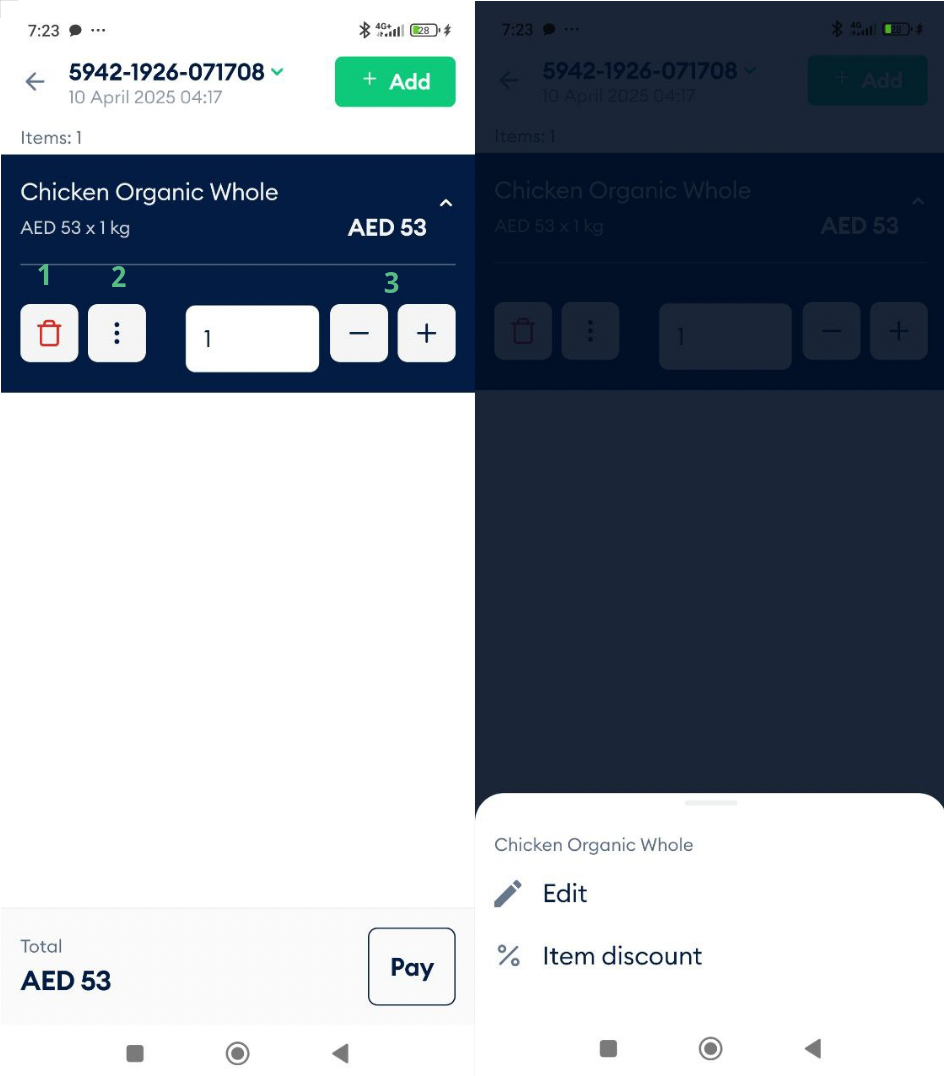
In the Cart screen, manage items as needed:
Tap the red bin icon (1) to remove an item from the cart.
Tap the three-dot menu (2) to edit the item or apply an item-level discount.
Use the + and − buttons (3) to adjust the item quantity.
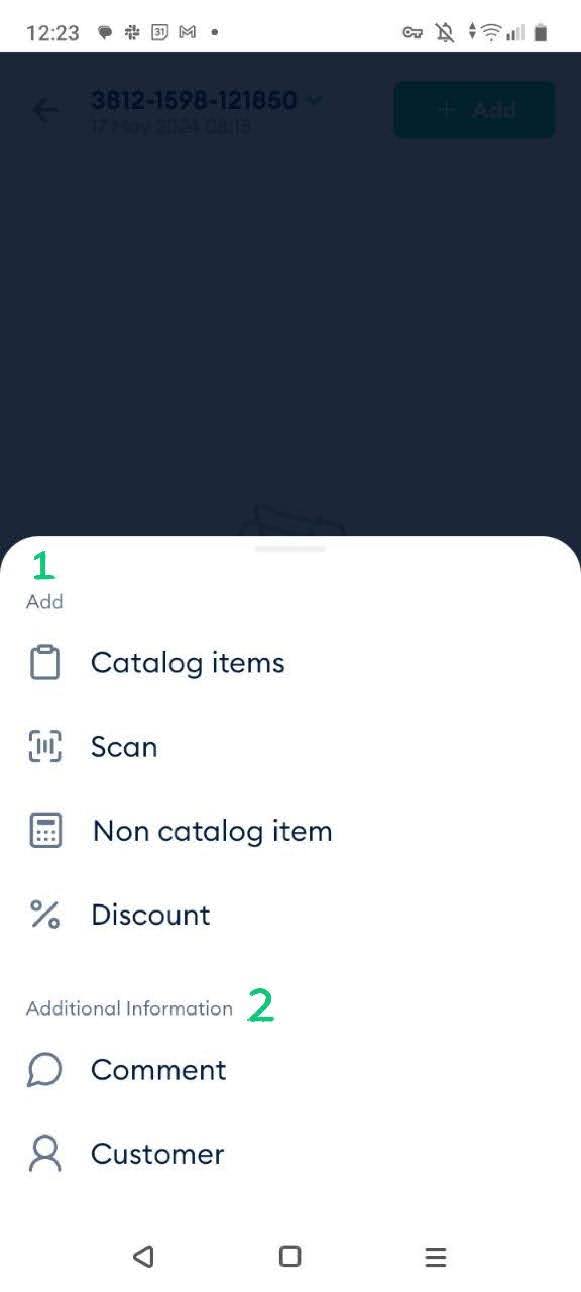
You may also tap Add at the top right corner. A new window will slide from the bottom. It is split into two sections, as shown in the screenshot below.
- The Add (1) section enables to add items to the cart from the Catalog, by scanning a barcode, adding a non-catalog item (e.g., creating it using the POS device), and applying a manual Discount.
- The Additional Information section (2) is used to manage customer-related details. You can add a comment, for example to explain why a discount was applied, or add a new customer to the database to use Fortis customer management, loyalty, and upselling features. If a loyalty program is configured in the Fortis POS Platform and the customer qualifies for a personal discount, the app will automatically notify you.
- Once you're done with the selection, hit the Pay button at the lower left corner to proceed with the purchase.
- Select a payment method: Card, Cash, or Mixed.
- After the payment is accepted, the POS device will print a receipt. Tap Finish.
- You will be returned to the Sales list. The status of the Sale will change to Closed, and the status of the payment will change to Paid.