Loyalty programs allow you to create targeted offers and rewards, helping you engage customers and encourage repeat business.
Loyalty Overview
Fortis provides dedicated tools to create flexible, multi-level loyalty programs. As customers spend more, they unlock higher rewards and discounts, encouraging repeat visits and continued engagement. A loyalty program is more than a discount mechanism; it is a strategic investment in customer retention and long-term customer relationships.
Customers can earn cashback or collect stamps and redeem rewards without needing a mobile application. Fortis will set up the loyalty program for you based on your selected preferences.
Requesting Loyalty Program Setup
- Sign in to your Fortis POS Platform at https://my.fortis.world/auth/login
On the Loyalty Program page, click Request Setup.
-
Choose the loyalty program type that best suits your business:
Points – customers earn cashback on every purchase and can redeem points as discounts or payments.
Stamps – customers collect stamps by purchasing selected items and receive a free product after collecting the required number of stamps.
Once submitted, your request will be sent to the Fortis team, who will contact you to collect the required details and complete the setup.
Managing Your Loyalty Program
After activation, you can monitor and manage your loyalty program.
From Loyalty → Home, you can:
-
View loyalty statistics such as:
New Loyalty Customers
Repeat Loyalty Customers
Total Points Given / Redeemed
Loyalty Revenue Rate
-
Access Manage Loyalty for configuration changes.
Customer Communications
To engage customers and promote your loyalty program:
Go to Loyalty → Communications.
-
Choose one of the available options:
Send One-Time Notification
Set Up Geo Notifications
Schedule Regular Notifications
Configure the message and send notifications to your loyalty customers.
Registration Page (Customer Sign-Up)
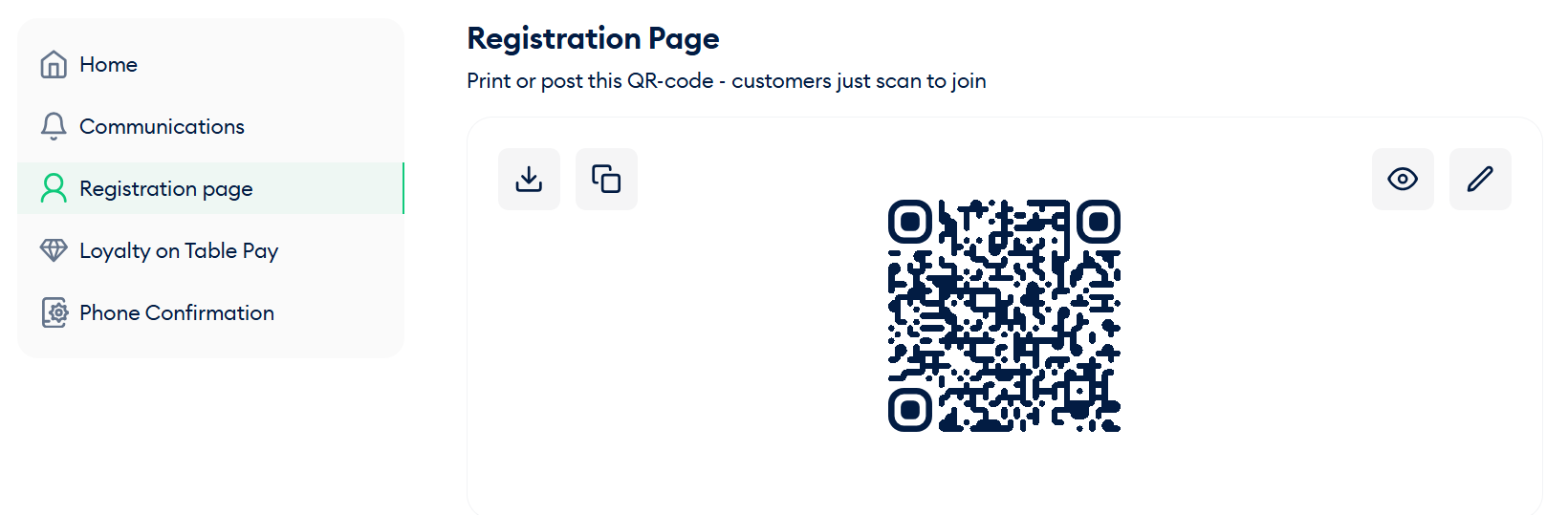
Fortis provides a self-registration page that allows customers to join your loyalty program easily.
Go to Loyalty → Registration Page.
Download or copy the QR code.
Share or print the QR code in your store.
Customers scan the QR code and complete registration instantly.
Phone Confirmation (Optional)
To verify customer phone numbers:
Go to Loyalty → Phone Confirmation
Enable Customer’s Phone Confirmation. (Phone verification is currently available via WhatsApp only)
Under Where to Confirm, select where verification should apply: Self-registration form, POS Terminal, or both