Tap Sales & Refunds to see the following window.
At the top of the screen (1), the green section contains two icons:
The search icon allows you to find a previously created sale using the transaction number.
The filter icon opens the sales filtering options.
The New Sale button (2) allows you to start a new sale. This button is also available on the main screen.
The Opened and Closed tabs (3) let you switch between active and completed sales.
All sales are displayed in the sales list. Each sale includes a sale status (4):
Opened: A sale has been created but no payment has been received.
In progress: The sale is currently being processed.
Canceled: The sale has been voided.
Closed: The sale has been successfully completed.
Each sale also shows a payment status (5) in the lower-left corner:
Not paid
Partially paid
Paid
Partially refunded
Refunded
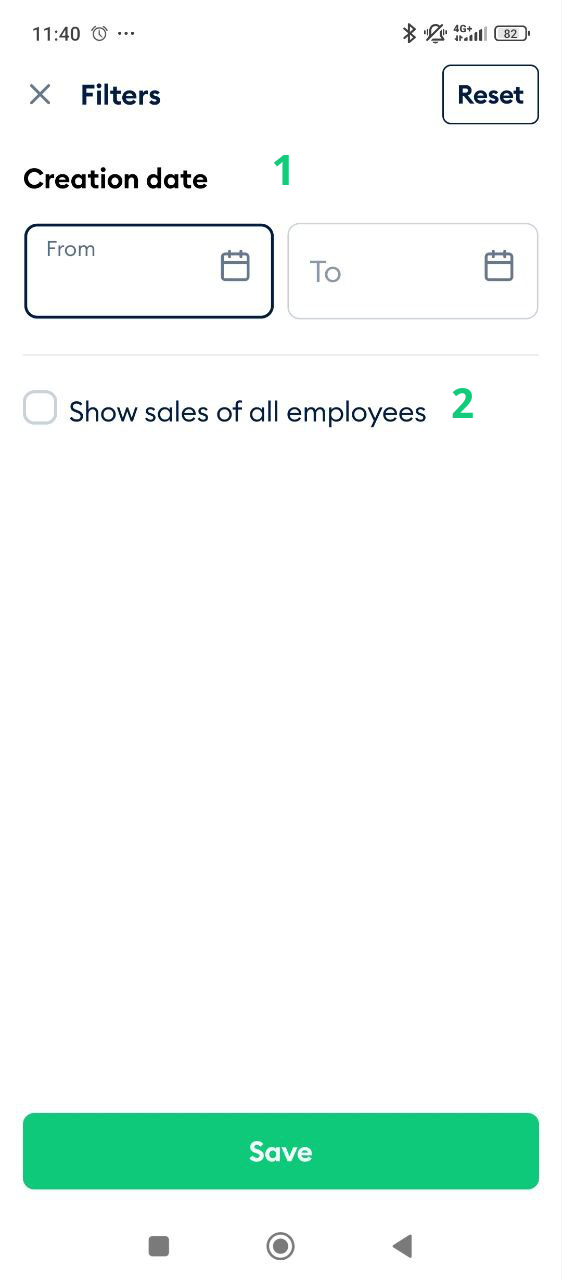
Sales Filter
When you first start using the system, the sales list will be empty. As transactions accumulate, finding specific sales becomes more important. The Fortis Sales Filter provides quick and efficient tools to help you locate sales as your list grows.
- Set the search period by tapping From and To (1) and selecting the required dates.
- Enable Show sales of other employees (2) to include transactions created by all employees at your location.
- Tap Save to apply and store the filter.