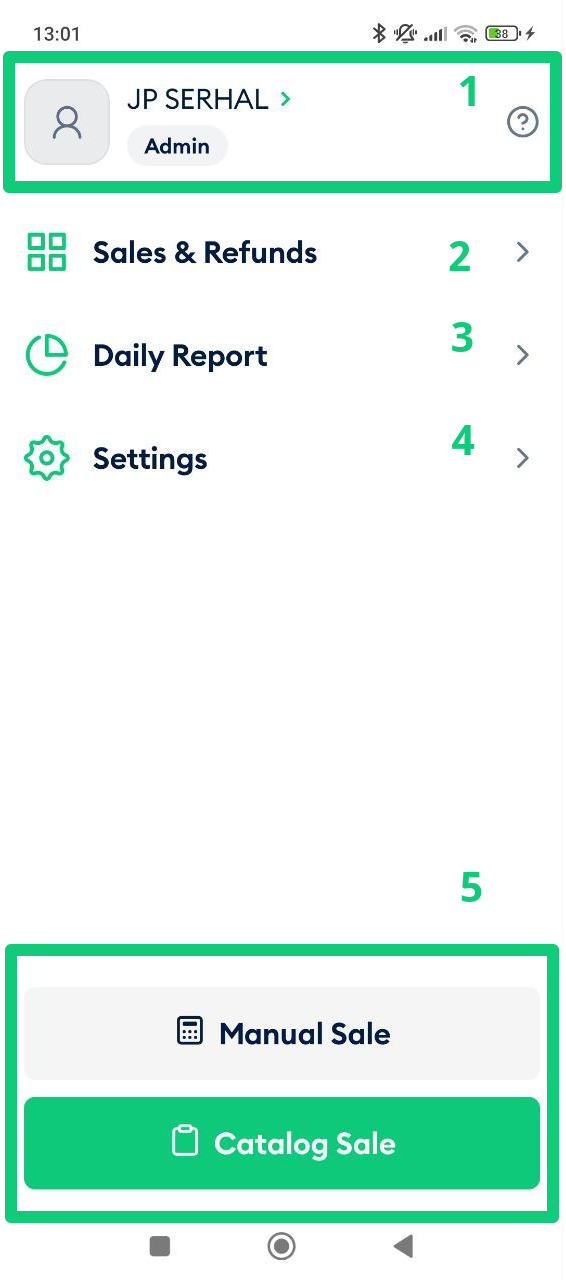
After powering on your terminal and signing in to the Fortis POS App, the main screen is displayed. This section provides an overview of the available options; each feature is explained in detail in later sections of this guide.
The top area (1) displays the currently logged-in user. In most cases, this will be the merchant or store owner.
The Help ( ? ) icon provides access to the Tech Support section, where you can contact the support team through the available channels for assistance while using the Fortis app.
The Sales & Refunds option (2) allows you to view previous transactions, create new sales, accept payments, and process refunds. For more information, refer to the Sales section of this guide.
The Daily Report menu (3) enables you to generate and print a summary of daily sales activity. This is covered in detail in the Reports section.
The Settings menu (4) opens the configuration area, where you can manage system preferences, sales settings, inventory options, and payment methods. Detailed setup instructions are provided later in this guide.
The Manual Sale and Catalog Sale buttons allow you to quickly start a sale, either by entering amounts manually or selecting items from your product catalog.
This completes the overview of the Fortis POS App main screen. Next, we will review the Settings section in detail.